RSS

Tag Archives: iPad

Necessary tricks for the iPad

The following list are some not-so-obvious iPad tricks that everyone should know about:

  • Screenshots

    To take a screenshot, simply press the “Sleep/Wake-Power” button along with the “Home” button at the same time
  • Turn off Programs running

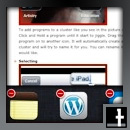
    Double click your “Home” button. After doing this you will notice a bottom display arise. Press and hold an icon. They will all start to jiggle…They will also have little red “x”s in the top-left corner. Press these in order to shut off programs that are running in the background. This will save on battery life.
  • Combining programs

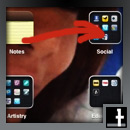
    To add programs to a cluster like you see in the picture above, Click and Hold a program until it start to jiggle. Drag the program on to another icon. It will automatically create a cluster and will try to name it for you. You can rename it if you would like.
  • Selecting

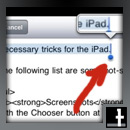
    While on text, if you would like to select, copy, cut, paste: double click on the text you would like to affect. It will automatically ask you if you would like to do any of the above mentioned tasks. If you would like to select more, drag the little blue dots to the left or to the right of the word until you are selecting precisely.
  • Undo

    Just Shake it! Ha ha. Neat.


Tags: ,

WordPress blog from iPad2


I am writing this blog from my iPad2. I love it, but the App has it’s limits. In order for you to write your own blog:

  • Download the WordPress App from the AppStore
  • Go to your blog online. (not from the WordPress App)
  • Log in
  • Go to: “Settings” –> “Writing” –> “Remote Publishing”
  • Check “Enable the Atom Publishing Protocol”
  • Check “Enable the WordPress, Movable Type, MetaWeblog and Blogger XML-RPC publishing protocols”
  • Save changes
  • Log in to the WordPress App
  • Add or edit “Posts”, “Pages” and “Comments”.

I tried to add pics through the iPad2. First, I tried the Free Adobe Photoshop Express App. Surprisingly, it didn’t open PSD files. Huh?

My next step was to look at the PSD viewer from Adobe, but it seems just like the name implies… a viewer!

I downloaded Layersforipad for $5.99, hoping it would allow me to open and edit PSD files. I can create PSD files, but I cannot open my saved files from Dropbox.

I have a red border, that you see around every image in my blog, that I want to continue on the images. In order to do this I have to:

  • Download an image with the border (This is not the PSD file, which would be ideal)
  • Open the file in “Layersforipad”
  • Painstakingly, delete the inner image, but not the border, pixel by pixel. (This took about an hour or more)
  • Prepare the image I want to use with “moreBeaute2″ to soften and correct, and “PS Express” to crop
  • Insert the photo layer in “Layersforipad”
  • Save to photos
  • Resize the image in the “Resize photos” app
  • Upload the image through the WordPress app, which always places the image at the bottom of the post (it is necessary to copy and paste the HTML code if I want to move the image

Note about writing blogs through the WordPress App: There is no WYSIWYG editor. Therefore it is useful, almost crucial that you can edit HTML in order to have proper formatting.


Tags: , ,

iPad3, 4 and beyond predictions (requests)

I love my iPad2.  That said, I have a few ideas for the developers.  So listen up.

Here we go:

  • Thinner and Lighter – most obviously
  • Screen completely to the edges – I expect
  • Unlimited battery life (I can see this not being an issue one day.  What is going on with wireless energy transfer anyway? Read more here and here) or built-in extendable plug
  • Unlimited hard-drive space (I bet one day in the near future we will laugh at the days ‘when people used to run out of space on their drives’.  The notion of Cloud Computing is taking us leaps and bounds, but it is still in its infancy)
  • Super-flipping fast because of terabytes and more of RAM and super wicked processors
  • Two flashes built-in on the front and the back
  • Magnetic electric cord – Macbooks have them.  Why don’t the iPods, iPads, and iPhones?
  • Ability to make phone calls with it – Hey! We thought phones were just getting smaller, but since maybe you only want to carry around the one device for that moment, why not?
  • Biometric or fingerprint scans to turn the devices on or login – Other computers are doing this, why isn’t Apple?
  • Water Proof
  • USB slots.  We all want them.  Give em to us?  Or is there a screaming new attachment slot that is better?  Actually, why not magnetic USB?  We can do it with the power cord.  Let’s do it with the USB or whatever we want to call the Magnetic Universal Connecting Cord (MUCC – Trademark Thomas Adam Johnson 2011 – hehe)
  • Auto-focus on the cameras and possibly even built-in OCR
  • The incorporation of Adobe with Apple – Like WTF? (Why the Face? am I not allowed to view Flash content on my iPad without serious tweaks?  let’s get out schnizzle together and make it work for the peeps)

I should work for Apple, but then the new device would be called the iTom.  Yeah!

Some other ideas I read about were a stylus pen attachment and a holographic, interactive imagery (think Star Wars).


Tags: , , ,

iPad2 best apps

I bought my iPad2 the other day. I am wowed by it constantly. I am using it for:

  • fitness
  • an alarm clock
  • reading books
  • social networking
  • taking and editing video
  • weather forcasts
  • stocks
  • syncing and updating my calendar on the go
  • translating
  • so much more

Already, two teachers today mentioned they wanted one as well and then they asked me the question:

“What apps should I get for it?”

So, here’s my initial list:

  • Pages -$9.99 Mac Word Processing
  • Numbers -$9.99 Mac Spreadsheet
  • Keynote -$9.99 Mac PowerPoint
  • iMovie – $4.99 Mac Video Editing
  • Calendars – $6.99 Sync Google Calendar – Pocket InformantHD – $14.99 seems like a more slick app actually
  • Quickoffice – $14.99 (on sale) Simple Office Quite
  • Kobo – FREE Document Reader
  • iTranslate – FREE Translator
  • Fitness – FREE Fitness Organizer
  • iHome+Sleep – FREE Alarm Clock plays music, shows weather, more
  • Skype – FREE Video Conferencing
  • Friendly – FREE Facebook App
  • iLoadLite – FREE Uploading videos to Facebook
  • pdf-Notes – FREE PDF Reader
  • Tweetdeck – FREE Twitter Organizer
  • Bloomberg – FREE Stock Market Reader – Market Scan – Stock Technical Analysis $19.99 a good addition for serious users
  • Scan – FREE QR Code Scanner
  • TED – FREE Link to TED talks
  • Shazaam – FREE Program to Recognize music
  • Adobe Photoshop Express – FREE Program to crop and edit photos
  • Adobe Ideas – FREE Drawing Program
  • IMDB – FREE Link to International Movie Database
  • Ebay – FREE Link to Ebay
  • Flipboard – FREE Social Media Organizer
  • Accuweather – FREE Weather Forcasts
  • Social Stats – FREE Quick Statistics of Country Populations
  • Photobucket – FREE
  • Transport Maps – FREE
  • Compass – FREE
  • Calculator Pro – FREE
  • Dictionary – FREE

I don’t play games, so ask your students which are the best ones out there.

Two recommendations to me:

  • Whatsapp $.99 Chatting
  • Viber FREE phone calls
 

Tags: ,