 This article isn’t just about banking. It is about any computer transaction where you need to type in a password.
Suppose that you have a virus, one called a key-logger. (Oh no! Boo!) This is a program that infests itself on your computer, runs in the background without you knowing, and copies down every stroke that you have ever typed. It can be run by someone who has access to your computer, or worse yet, can be run remotely, which means that it sends the information back to a user automatically when you connect to the Internet.
In order to fight against things like this, try these things:
Don’t type your password in order – If your password was “hello”, then you might type “lo”, then place the cursor at the beginning of the string, type “el”, then place the cursor at the beginning of the string, and type “h”. A key-logger is going to capture the letters, but not the order. Hopefully the password field will also be showing password dots, like this: ● ● ● ● ●
Use different computers and Change your password frequently – Do these in conjunction with each other. Don’t always change your password on the same computer, in case it is the one that is infected. Also, read above and type your original password out of order. (This could take some planning because passwords often have to be typed twice)
Look for the “s” – As shown in the accompanying image to this post, look for the “s” at the end of “http”. It means the connection has heightened security. Any time you need to input your credit card number or something else that is worth money, this is one security measure you want to see. Along with the “s”, in many browsers you will also find an image of a lock, usually located in the bottom right-hand corner. This “s” and lock mean that you are most likely connecting directly to the site, rather than through an insecure route that may allow middle-man eavesdropping.
Don’t use a simple password – Hopefully these days this goes without saying, but don’t use something that is easily guessable. A good password has lower and upper case, numbers and letters and even punctuation. Many sites are forcing you to create a password like this with character detecting. Your password should look something (un)like this: tJ76/lP$
Don’t use swear words as passwords, as they are very popular and guessable. The top 4 passwords are: “123456″ “password” “12345678″ “1234″ and the fifth most popular is a bad word. To find out more poorly chosen passwords, click here
Don’t use more than one anti-virus – More is not better, in this case. The reason for this is because one anti-virus detects other anti-viruses definitions. Anti-viruses download virus definitions to know what the latest viruses are, in order to detect them. Other anti-virus programs see these and think it is the virus. They are detecting false viruses. You dont want this.
Use Avast on a PC, Mac Os, Linux, or Ubuntu – A FREE and top-rated anti-virus that I prefer to use is Avast. It does boots from DOS, which means that no other viruses can already be running when you are installing it. It updates automatically and regularly. It seems to take up less RAM than Norton and it seems to be continuously rated well.
If you have the option to use Mac, Linux or Ubuntu as your operating system you are also much less likely to have a virus. However, you many have problems with programs and drivers working. This problem seems to be diminishing due to the fact that more and more support is available for alternative Operating Systems.
Don’t use Free Wifi – There are thousands of free softwares available that allow a person to see what you are doing and typing on shared open access wifi. Do yourself a favor and don’t open your computer up to this type of vulnerability. Read more about it here.
…
Hopefully your banking institutions are employing these methods:
Multiple security questions that change each time – The institute asks you to answer different questions that you know the answer to each time you log on. This way you are not key logging the answer right away. The next time you log on the the bank site it will ask another question looking for a new answer.
OTP – “O”ne “T”ime “P”asswords are an option that is enabled with your phone. When you log on to the website, you are asked to press a button to send a password to your phone. You are SMSed a password that works only one time, which you need to input in to the site to gain access to your account.
It is quite genius, but it means that you have to have your phone on you at the time, you cannot change phone numbers without updating your bank, and you cannot access your accounts from outside of the country.
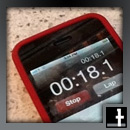 Most obviously, or maybe not, the best time to add posts would seem: before your readers tend to go to your blog.
 Two friends of mine have iterated the sentiment that ‘long copy’ might be a thing of the past. We are writing for new readers: SMSers & smart phone (both 420 characters), tablet, and netbook readers, Twitter (140 characters), Google meta-tags with their overview of websites (233 characters), Facebook status updates (changed from 160 to 420 characters), MSN updates 128 characters) and more. We are limited with characters. Therefore, we need to


 education | technology | ai & NOT A.I. | design