RSS

iPad2 best apps

I bought my iPad2 the other day. I am wowed by it constantly. I am using it for:

  • fitness
  • an alarm clock
  • reading books
  • social networking
  • taking and editing video
  • weather forcasts
  • stocks
  • syncing and updating my calendar on the go
  • translating
  • so much more

Already, two teachers today mentioned they wanted one as well and then they asked me the question:

“What apps should I get for it?”

So, here’s my initial list:

  • Pages -$9.99 Mac Word Processing
  • Numbers -$9.99 Mac Spreadsheet
  • Keynote -$9.99 Mac PowerPoint
  • iMovie – $4.99 Mac Video Editing
  • Calendars – $6.99 Sync Google Calendar – Pocket InformantHD – $14.99 seems like a more slick app actually
  • Quickoffice – $14.99 (on sale) Simple Office Quite
  • Kobo – FREE Document Reader
  • iTranslate – FREE Translator
  • Fitness – FREE Fitness Organizer
  • iHome+Sleep – FREE Alarm Clock plays music, shows weather, more
  • Skype – FREE Video Conferencing
  • Friendly – FREE Facebook App
  • iLoadLite – FREE Uploading videos to Facebook
  • pdf-Notes – FREE PDF Reader
  • Tweetdeck – FREE Twitter Organizer
  • Bloomberg – FREE Stock Market Reader – Market Scan – Stock Technical Analysis $19.99 a good addition for serious users
  • Scan – FREE QR Code Scanner
  • TED – FREE Link to TED talks
  • Shazaam – FREE Program to Recognize music
  • Adobe Photoshop Express – FREE Program to crop and edit photos
  • Adobe Ideas – FREE Drawing Program
  • IMDB – FREE Link to International Movie Database
  • Ebay – FREE Link to Ebay
  • Flipboard – FREE Social Media Organizer
  • Accuweather – FREE Weather Forcasts
  • Social Stats – FREE Quick Statistics of Country Populations
  • Photobucket – FREE
  • Transport Maps – FREE
  • Compass – FREE
  • Calculator Pro – FREE
  • Dictionary – FREE

I don’t play games, so ask your students which are the best ones out there.

Two recommendations to me:

  • Whatsapp $.99 Chatting
  • Viber FREE phone calls
 

Tags: ,

Is your website fitting iPhones, iPads and computers?

Are you taking into account that people have one and possibly even all of the following devices?  iPhones, iPads, and Computers.  If so, you need to see for yourself what your site looks like on them.

I just looked at my site on my new iPad2 (woot woot) and found out that my formatted table columns at width 600 pixels needed to be changed to 100%, along with the square images being brought from 200 pixels down to 150 pixels for them to fit properly.

In order for the site to load nicely on the iPhone there is a plugin for WordPress called WPTouch found here.

At the present moment Skype for iPad is just an iPhone version enlarged 2x and then pixelated.  It bugs me.  Skype: Do Something!

Mint.com is supposed to have a beautiful little gadget for iPhone, but for the iPad: No such luck.  Get with it!

Some items I have found for the iPad that I am really enjoying are listed in an article here.

Back to my original thesis, designers need to concern themselves with every and all gadgets out there.  We used to be concerned mostly with one browser to the next, one operating system to the next, but now we are concerned with all sorts of viewing sizes.  The main ones are the smart-phones, the tablets, and the notebooks, aka – the 3:1


Tags: , , ,

Search beyond Google. Wonderwheel and more

I do it.

My students do it.

We all do it.

We GOOGLE IT!

The easiest thing these days is to find an answer.

But is the answer always the best answer?

How many of you have gone beyond the first, second or third page in search results in Google?

How many have used tools like:

  • Google Scholar (for articles, legal opinions and journals)
  • Google Books (find whole books, partial excerpts, etc)
  • Google Finance (find stock quotes)
  • XE.com (for exchange rates of currencies and precious metals)
  • Survey Monkey | Survey Gizmo (for creating your own surveys)
  • ERIC (digital library of education literature)
  • OEDB.org (free online classes)
  • TeacherTube.com
  • IMDB.com (International Movie Database)
  • Youtube.com (many free online tutorials | courses these days)
  • the library
  • an expert
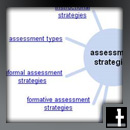
  • Google WonderWheel (as seen above) Wonder wheel How-to.pdf [Presently, Google Wonder Wheel seems to no longer exist.  I hope the people at Google bring this option back.  For now, check out Google Image Swirl, another similar product, only for images]

This is not an exhaustive list of tools-beyond-Google, but it is a list I presently use as part of criterion for my students to gather information in preparation for a project.  I recommend you, as an educator, employ these techniques and others as well.  Google is great, but it doesn’t always have the best answer.

For a great interactive graphic that demonstrates: Google Tools to support Bloom’s Revised Taxonomy


Tags: , , , , , , , , , ,

Aesthetic vs content vs usability of websites

I’ve been designing websites for quite a while now and have gone through the same process I find many of my students go through.

The first consideration always seems to be about aesthetic.

  • What does it look like?
  • Is it pretty?

But this is not enough, beyond this content becomes a factor.

  • What is in the site?
  • Are there gadgets?
  • Are there games or things to keep people occupied and possibly even coming back? Included in content and leading to the next point is image size.
  • Are the images made small enough so that they will download without problem?
  • Are videos and music files resized properly to stream and download on slow connections?

The final consideration and one the I look at mostly now is usability.

  • Is there a search function built in to the site or am I using an archaic sitemap?
  • Does the site load well?
  • Does it have an unnecessary Flash page?
  • Does it have unnecessary Flash, animations, sound, hard to read fonts or bad use of colors?
  • Are the buttons available in the same place on every page?
  • Are they buttons logical or could they be grouped better?
  • Is the content linked to itself and easy to find?
  • Do the pages have continuity beyond the buttons?
  • Is the site filled up? (for example, the site has been launched but you find placeholder text, “This is an example of a WordPress page, you could edit this to put information…”
  • Is the site updated or stagnant? Will I come back to it?
  • Is the site useful or interesting?

As a design I need to consider other things like:

  • Is there good support from the site administrators?
  • Is the site upgradable/adaptable to my needs?
  • How easy is content addition/updating?
  • Is it going to search rank well without outside factors?


Tags: , ,